





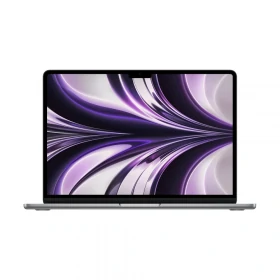
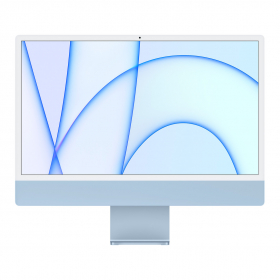

Used daily, a computer is naturally exposed to wear and tear: dust, overheating, file buildup, or residue, both on the outside and inside of the device. Even though Macs are known for their reliability and longevity, a lack of maintenance can eventually impact performance and reduce lifespan.
Regular cleaning, whether physical or software-based, helps preserve your Mac’s performance and extend its lifespan. By adopting a few simple habits, you can easily keep your computer clean, fast, and enjoyable to use.
The Okamac team shares some practical tips for effectively cleaning your Mac, both externally and at the system level.

How to Clean the Outside of Your Mac
Dust, fingerprints, and dirt can quickly accumulate on your Mac. Regularly cleaning the outside of your device helps keep your computer clean and pleasant to use, while preventing particles from getting into the components.
Cleaning a Mac’s Screen
The screen is a fragile surface that requires gentle cleaning.
- Turn off your Mac and unplug it.
- Use a clean, lint-free microfiber cloth.
- If needed, lightly dampen the cloth with water.
- Gently wipe the screen without applying pressure.
Avoid:
- harsh household cleaners or abrasives
- alcohol-based wipes
- spraying liquid directly onto the screen.
Cleaning the Keyboard and Trackpad
The keyboard can accumulate dust, crumbs, and fingerprints.
To clean it:
- Turn off your Mac.
- Tilt the computer slightly.
- Use compressed air to remove dust between the keys.
- Wipe the keys with a slightly damp microfiber cloth.
The trackpad can be cleaned with a dry or slightly damp microfiber cloth.
Cleaning Ports and the Chassis
Ports (USB, Thunderbolt, headphone jack) can collect dust over time.
To clean them:
- use compressed air to remove particles
- wipe the chassis with a microfiber cloth
- check that nothing is blocking the ports
Avoid using metal or sharp objects to prevent damaging internal connectors.
How to Remove Dust from Inside Your Mac
Dust doesn’t just accumulate on the outside of your Mac. Over time, it can also get into vents and fans, affecting the device’s cooling. Occasional dusting helps preserve your Mac’s performance and prevent overheating.
Why Dust Can Slow Down a Mac
When dust builds up inside the computer, it can clog fans and vents. The cooling system then works less efficiently.
This can lead to:
- device overheating
- louder fans
- reduced performance
- faster component wear
A well-ventilated Mac typically runs faster and quieter.
Cleaning Fans and Vents
To remove dust from vents:
- Turn off and unplug your Mac.
- Locate the vents, usually on the back or bottom of the device.
- Use compressed air to blow dust out of the openings.
- Hold the can a few inches away to avoid condensation.
This process is often enough to remove most of the dust without opening the computer.
Precautions Before Opening a Mac
In some cases, you may need to open the case for a deeper clean.
Before doing so:
- turn off the computer completely
- unplug all cables
- work on a clean, stable surface
- avoid touching internal components directly
If you’re not comfortable with this, it’s best to consult a professional to avoid damaging your device. Additionally, on some newer devices, simply opening the case may affect warranty conditions. When in doubt, it’s better to leave this task to a specialist.
How to Clean Your Mac at the Software Level
Over time, your Mac can also slow down due to the buildup of unnecessary files, apps, or temporary data. Software cleaning helps free up storage space and improve your computer’s performance. Here are some simple actions you can take:
Check Storage Space
The first step is to check available disk space.
To do this:
- Click the Apple menu in the top-left corner of the screen.
- Select About This Mac.
- Open the Storage tab.
This will help you identify files, apps, or documents taking up the most space on your Mac.
Delete Unnecessary Files
Unused files can quickly clutter your computer.
Consider deleting:
- old downloads
- app installation files
- documents or images you no longer need
Regularly decluttering helps free up space and lighten your system.
Empty the Trash
When you delete a file, it stays in the Trash and continues taking up space.
To permanently delete these files:
- Click the Trash icon in the Dock.
- Select Empty Trash.
Do this regularly to prevent unnecessary file buildup.
Remove Duplicates
Over time, you may end up with multiple copies of the same file, especially photos, documents, or videos. Deleting duplicates can easily free up several gigabytes of storage.
You can:
- manually search for identical files
- use a file management tool to find duplicates.
Disable Startup Apps
Some apps launch automatically when your Mac starts, slowing down the system boot.
To disable them:
- Open System Settings (or System Preferences depending on your macOS version).
- Click Users & Groups.
- Select Login Items.
- Remove apps you don’t want to launch automatically.
Limiting these apps often makes your Mac start up faster.
Mistakes to Avoid When Cleaning a Mac
Cleaning your Mac is simple, but some bad practices can damage the device or reduce its performance. Here are the most common mistakes to avoid.
- Using harsh household cleaners
Common household cleaners (strong alcohol, ammonia, glass cleaners) can damage the screen and Mac’s coating. Always use a slightly damp microfiber cloth or a screen-safe product.
- Spraying liquid directly onto the device
Never spray liquid directly onto the screen, keyboard, or chassis. Moisture could seep into internal components. Always apply the product to the cloth, never directly onto the computer.
- Using a vacuum to remove dust
A vacuum can create static electricity, which may damage electronic components. Instead, use compressed air to remove dust from fans and vents.
- Accidentally deleting system files
During software cleaning, some deletions may affect macOS functionality.
Before deleting a file or app:
- check that it’s not a system file
- prioritize deleting documents, downloads, or unused apps
When in doubt, it’s better to leave the file in place.
When Cleaning and Maintenance Aren’t Enough for Your Mac...
Despite regular maintenance, some components may naturally wear out over time: less efficient battery, slowdowns, or changing needs. In these cases, it may be difficult to continue using your Mac under the same conditions.
Instead of leaving your computer unused in a drawer, you can give it a second life. With Okamac’s buyback service, you can sell your Mac easily at a fair price while supporting a more sustainable approach.
It’s also an opportunity to switch to a newer refurbished Mac, tested and renewed, to continue enjoying the Apple ecosystem while keeping your budget in check.
Regularly maintaining your Mac not only improves its daily performance but also extends its lifespan. If you'd like to learn more and discover best practices for keeping your computer running longer, check out our dedicated guide on how to delay your Mac's obsolescence.