





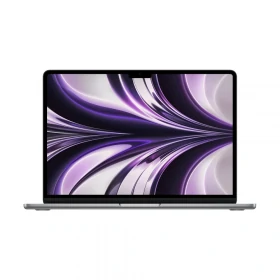
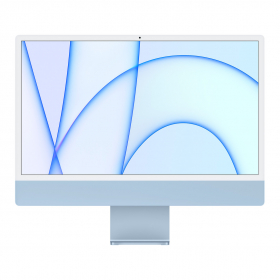
A Mac is generally designed to last a long time. It’s not uncommon to see a MacBook, iMac, or Mac mini working perfectly for many years. However, over time, certain signs may appear: slower startup, less responsive apps, full storage, or limited compatibility with the latest software. These changes can make it seem like your computer is already outdated.
In many cases, this doesn’t mean your Mac has truly reached the end of its life. With a few good usage habits and regular maintenance, it’s often possible to delay a Mac’s obsolescence and maintain good performance for several more years. In this article, we’ll explore why a Mac can become obsolete, as well as simple steps to extend its lifespan.
Why does a Mac eventually become obsolete?
Apple computers are known for their above-average lifespan. Many users keep their Macs for five, six, or even eight years. Yet even a reliable, well-designed machine will eventually hit certain limits.
A Mac’s obsolescence doesn’t usually happen all at once. Instead, it results from a combination of factors: software evolution, hardware limitations, and daily computer use. Understanding these elements helps you better extend your Mac’s lifespan.
Performance changes over time
Over the years, software and apps evolve. New versions of browsers, professional tools, or creative software are often designed to take advantage of the processors, graphics cards, and memory of the latest machines.
An older Mac may still work fine, but it can sometimes struggle to keep up with these changes. Some apps may require more RAM, more graphics power, or more storage space, which can lead to:
- apps taking longer to launch
- a less responsive system
- slowdowns during certain tasks
Limitations related to macOS updates
Another key factor is macOS system updates. Apple supports its computers for several years, but each model eventually reaches a point where it can no longer install the latest system versions.
When a Mac stops receiving the latest macOS updates, several consequences may arise:
- some recent apps may no longer be compatible
- security updates become less frequent
- some new features may no longer be available
This situation is often called software obsolescence: the computer still works, but it’s no longer fully adapted to the latest software.
The impact of usage and maintenance
Finally, how a computer is used plays a major role in its longevity and performance.
Over time, a Mac can accumulate:
- many unnecessary files
- rarely used apps
- temporary or cached data
Storage can gradually fill up, which may slow down some operations. Similarly, a computer that’s never restarted, runs many background apps, or is used in a very hot environment may lose responsiveness.
The good news is that many of these issues can be fixed with simple steps. That’s exactly what we’ll cover next.
Simple habits to keep your Mac running smoothly
You don’t need to be a tech expert to extend your Mac’s lifespan. In many cases, a few simple adjustments and good usage habits can keep a computer running smoothly for years.
Keep enough free storage space
Nearly full storage is one of the most common causes of slowdowns on a Mac. When the drive is too full, macOS has less space to manage temporary files and system operations. Generally, it’s recommended to keep at least 10–20% of your Mac’s storage free.
To avoid storage overload, you can:
- delete unnecessary files or old downloads
- empty the Trash regularly
- move some data to an external hard drive or cloud storage service
- uninstall apps you no longer use
Well-managed storage helps macOS run more efficiently and maintains good performance over time.
Limit startup apps
Some apps launch automatically when you turn on your Mac. While this feature can be useful for certain programs, too many startup apps can slow down login and consume unnecessary resources.
To check which apps are affected, go to:
System Settings → General → Login Items
There, you can disable apps you don’t need at startup. Your Mac will usually boot faster and use fewer background resources.
Update macOS and apps
macOS and app updates play a key role in your computer’s performance and security.
New versions often include bug fixes, performance optimizations, and security updates.
Keeping your system updated helps keep your Mac stable and fast. However, it’s important to check that the new macOS version is compatible with your Mac model, especially if your machine is a few years old.
Monitor resource-heavy software
Some programs can consume a lot of RAM or CPU power, which can slow down the entire system.
If your Mac suddenly becomes less responsive, it may help to check Activity Monitor (accessible via Applications → Utilities). This tool shows which apps are using the most resources. For example, a browser with many open tabs, a video editing program, or some poorly optimized apps can overload your Mac.
In this case, closing resource-heavy apps or limiting the number of programs running at once can immediately improve your computer’s responsiveness.
Maintain your Mac to preserve performance
Beyond adjustments and usage habits, regular Mac maintenance can also help preserve performance over time. Like any computer, a Mac gradually accumulates temporary files, unnecessary data, and background processes that can slow down the system. Taking a few minutes now and then to clean and check certain elements often helps restore a smoother computer and prevent slowdowns from becoming permanent.
Clean up unnecessary files and data
Over the years, it’s common to accumulate many documents, downloads, photos, or apps that are no longer used. These files take up storage space and can make system organization more difficult.
Regular cleaning helps free up disk space, find important files more easily, and prevent storage from becoming overloaded.
You can, for example:
- delete old downloads
- move some data to an external drive
- uninstall apps you no longer use
Note that macOS provides built-in tools to view storage usage and identify the largest files.
Restart your Mac occasionally
Many users have the bad habit of leaving their Mac on all the time or simply closing the lid on a MacBook. However, an occasional restart can help the system start fresh.
A simple restart of your Mac allows:
- clearing some temporary caches
- closing stuck or unnecessary processes
- properly restarting some system services
A very simple step that can sometimes immediately improve responsiveness.
Avoid overheating and protect components
Operating temperature also plays a role in a Mac’s performance. When a computer gets too hot, the system may automatically reduce processor power to prevent hardware damage. This can cause a temporary drop in performance.
Some precautions can help limit this:
- use your Mac on a flat, well-ventilated surface
- avoid blocking ventilation grills
- occasionally clean dust around the fans
In some cases, internal Mac cleaning can be beneficial, especially if dust has built up over the years.
Can you improve the performance of an aging Mac?
When slowdowns become more noticeable, there are sometimes ways to give an old Mac a second life. Depending on the model and its year of manufacture, some hardware or software upgrades can significantly improve performance.
However, these optimizations aren’t always possible on newer models, as some components are now soldered directly to the motherboard. But on many older Macs, upgrades can truly extend their lifespan.
Replace a hard drive with a faster SSD
In some older Mac models, storage is still based on a mechanical hard drive (HDD). These drives are much slower than today’s SSDs (Solid State Drives).
Replacing a hard drive with a faster SSD can transform a Mac’s user experience:
- much faster system startup
- faster app launches
- overall more responsive system
In many cases, this upgrade provides an immediately noticeable performance boost, often far greater than what a simple software cleanup can achieve.
Add RAM when possible
RAM (memory) plays a crucial role in a computer’s ability to handle multiple apps at once. If your Mac has limited RAM, some tasks may become slower when several programs are open.
In some Mac models (especially some older iMacs and MacBooks), it’s possible to increase RAM. This upgrade can allow:
- opening multiple apps simultaneously
- using more demanding software
- reducing slowdowns related to multitasking
However, note that in newer Macs, RAM is often integrated directly into the motherboard and can’t be modified after purchase.
Install a compatible macOS version
When a Mac starts to age, the question of compatibility with newer macOS versions often arises. Installing a too-recent system on an older computer can sometimes cause slowdowns if the hardware isn’t powerful enough.
In some cases, using a macOS version perfectly suited to your Mac model can provide a better balance between features and performance.
Some advanced users also choose to install newer macOS versions using special tools, but these solutions require technical skills and may cause stability or security issues. For everyday use, it’s generally best to stick with a version officially compatible with your Mac.
How to tell if your Mac has reached the end of its life?
Even with good maintenance, a computer will eventually reach certain hardware or software limits. Before considering a replacement, it’s useful to determine whether your Mac has truly reached the end of its life or can still be used effectively for a few more years.
Several signs may indicate a Mac is becoming difficult to use daily:
- recent apps are no longer compatible with your macOS version;
- the system remains slow even after cleaning storage and closing apps;
- simple tasks like web browsing or opening documents become noticeably slower;
- a MacBook’s battery lasts less and less, even after optimization;
- your Mac can no longer receive important security updates.
In these situations, it can become difficult to continue using your computer under good conditions, especially if your needs evolve or you use demanding professional software.
However, it’s important to distinguish between a truly obsolete Mac and one that’s simply poorly maintained or cluttered with unnecessary files. In many cases, a few adjustments are still enough to extend its lifespan.
Refurbished Macs: A sustainable solution to avoid obsolescence
When hardware limitations become too significant, replacing your computer may be the most reasonable solution. However, this doesn’t necessarily mean you need to buy a new device. Refurbished Macs are now an interesting alternative to keep using a powerful computer while limiting IT obsolescence.
Buying a refurbished Mac offers several advantages:
- extend the lifespan of Apple computers by preventing them from being replaced too soon;
- access a powerful Mac at a more affordable price;
- reduce the environmental impact of manufacturing a new device.
At Okamac, every Mac is refurbished in France and tested on over 25 checkpoints to ensure reliable performance and worry-free use. Devices also come with a minimum 12-month warranty, so you can buy a refurbished Mac with confidence.